Claude Codeのステータスラインが示す情報と利用方法
 AIコーディングのリソース監
本記事は、AI開発環境であるClaude Codeにおけるカスタムステータスラインの実装について解説している。
この二段構成のステータスラインは、第一行で作業ディレクトリ、使用モデル、現在のタスク名などのプロジェクト状況を一目で把握できるようにする。
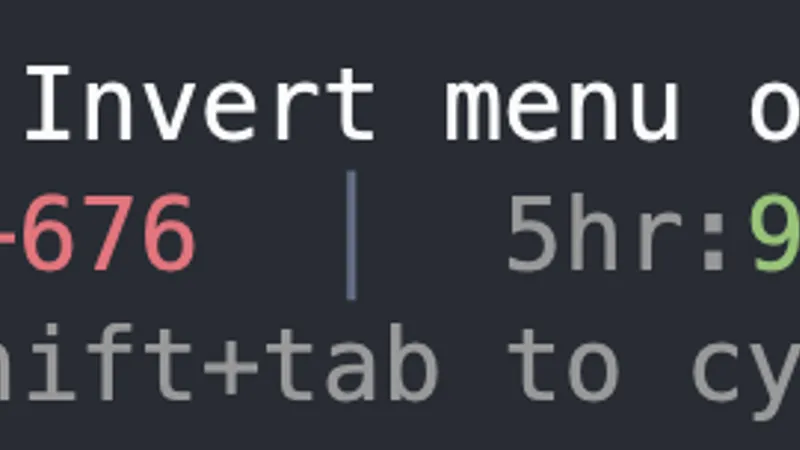
第二行では、コンテキストウィンドウの残量(ctx)、セッションで利用した総トークン数、および実際にコミットされたコードの増減数を表示し、実際の開発進捗を可視化する。
さらに重要な機能として、5時間および7日間のレートリミット残量を色分けして表示することで、API予算が枯渇する前に作業を完了させるための警告を提供する。
AI開発環境でコードを扱う際、どのモデルが使われ、どれだけのリソースを使っているかをリアルタイムで把握することは重要です。最近、Claude Codeというツールが提供するステータスライン機能は、これらの情報をターミナル上に視覚的に表示し、作業効率の向上に貢献すると注目されています。
開発状況を一目で確認できる設計
このステータスラインは、現在いるディレクトリやGitブランチ、そして使用しているAIモデル(Opusなど)といった基本的な開発環境情報を一行目(Row 1)で表示します。さらに、現在のタスク名も同時に表示されるため、「どのリポジトリの、どの機能改善に取り組んでいるか」を瞬時に把握できるのが特徴です。
コンテキストとコストの可視化
二行目には、AIが処理できる情報量を示す「コンテキストウィンドウ(ctx)」の残量がパーセンテージで表示されます。これは消費が進むにつれて赤く変化し、リソース枯渇を警告します。また、セッションでの総トークン数や、実際にコードとして追加・削除された行数も記録され、作業の実績を定量的に把握できます。
利用制限と効率的なワークフロー
さらに重要なのが、5時間および7日間のAPI利用レートリミットの残量表示です。これにより、ユーザーは「いつ上限に達するか」を事前に予測でき、タスクの中断を防げます。また、コード削除(refactor)が価値ある作業であると評価する設計も、効率的な開発フローをサポートしていると言えます。
まとめ
このステータスライン機能は、単なる情報表示にとどまらず、AIとの協業におけるリソース管理や進捗把握といった実務的な課題を解決します。高度なターミナルツールが、開発者の生産性をどのように高めるかを示す好例だと言えるでしょう.
原文の冒頭を表示(英語・3段落のみ)
Row 1 — where am I?~/dev/aimhuge (main) [opus] — the working directory, the git branch, and the model I'm on. Then the session's name (here, the task in flight: "Invert menu order in projects page"). One glance answers "which repo, which branch, which model, doing what."Row 2 — how much runway?ctx:65% — how much of the context window is left. Every percentage on this line is a burndown: it starts at 100% and counts down, green while there's room and shading to red as it runs out. When ctx gets low — around 20% on Opus's 1M-token window — a compaction is coming, so it's my cue to wrap up a thread or hand off.tok:351.5k — total tokens used this session.+1681/−676 — lines added and removed this session. This is the one I love: it's how much work actually landed — real code churn, not just tokens spent. And the deletions aren't waste — lines removed is often the sign of a good refactor: cutting cruft, collapsing duplication, simplifying. A session that's net-negative can be the most valuable kind.5hr:95% reset 10pm · 7d:95% — the part I care about most: how much of my 5-hour and weekly rate-limit budget is left, and when the window resets. Green means plenty; it shades to red as I burn it down. No more surprise "you've hit your limit" mid-task.Row 3 — what can it do without asking?▸▸ bypass permissions on (shift+tab to cycle) — the current permission mode. Handy to keep visible so "why didn't it ask me?" is never a mystery.How it worksClaude Code pipes a JSON blob (cwd, model, session, token and cost data) to whatever command you point statusLine at. Mine is a POSIX shell script that reads that JSON with jq and prints two ANSI-colored rows. It colors each percentage by how much budget remains — green when there's room, red when there isn't — so the line reads at a glance without me having to parse numbers.Install itThe easy way: let Claude Code do itPaste this page's URL into Claude Code and say "install this status line for me":https://aimhuge.com/blog/claude-code-status-lineClaude will read the steps below and set everything up. The rest of this section is written so it (or you) can follow along.Requirements: jq and git on your PATH (the script degrades gracefully without git). Three steps:1. Save the script below to ~/.claude/statusline-command.sh (or grab it directly: statusline-command.sh).#!/bin/sh
# Claude Code status line
# Row 1: ~/dir (branch) [model] session-name
※ 著作権に配慮し、引用は冒頭3段落までです。続きは元記事をご覧ください。