ターミナルに話しかけて、LLMが応答
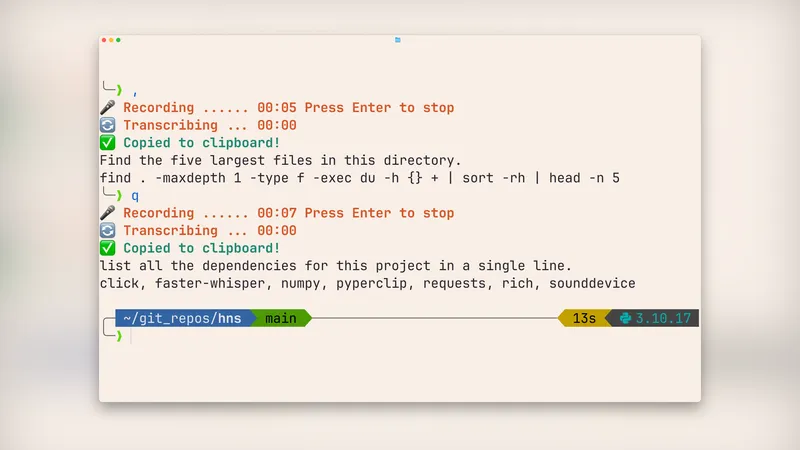 音声でコマンドや質問を実行
音声認識技術とLLMを組み合わせて、ターミナル上でコマンド入力や質問が可能に。
hns CLI toolとPi coding agentを使用し、設定方法も解説している。
日本のテックメディアGIGAZINEが取り上げる、語りかけるだけでコマンドが実行される新しい仕組みが注目されています。この技術は、端末に直接話しかけることで、ターミナルコマンドを生成したり、質問に答えたりできるというユニークな方法を採用しています。
話しかけるだけでターミナルコマンドを実行
この仕組みでは、ユーザーが「,」と「q」の2つのコマンドに話しかけるだけで、ターミナルにコマンドを生成したり、質問に答えたりできます。例えば「,」に話しかけると、ユーザーが何をしたいのかを自然言語で伝え、それに応じて最適なコマンドが生成されます。また「q」に話しかけると、大型言語モデル(LLM)がその質問に答える仕組みになっています。
ローカルで動作する仕組みと設定方法
この技術は、ローカルの環境で動作するよう設計されています。ユーザーは「hns」というCLIツールと「Pi coding agent」を組み合わせることで、音声入力をテキストに変換し、コマンドを生成します。macOSでは、hnsをインストールし、Pi coding agentを設定することで、ターミナルで話しかけるだけで操作が可能になります。
音声入力とLLMの組み合わせが強力
このシステムは、音声入力とLLMの組み合わせによって、ターミナル操作の効率を大幅に向上させています。ユーザーが話しかけるだけで、ファイルの検索やコマンドの実行が可能になります。また、この設定はローカルで動作するため、プライバシーを重視するユーザーにとっても魅力的な機能です。
まとめ
この技術は、ターミナル操作の新しい形を示しており、音声入力とLLMの融合によって、操作の効率を大きく向上させています。今後、このような技術が広く利用されることで、プログラミングやシステム管理がより楽になる可能性があります。
原文の冒頭を表示(英語・3段落のみ)
I set up two terminal commands I can talk to, , and q. I enter , in terminal, hit Enter, say what I want, it gives me back the shell command. With q command, I ask a question out loud, and an LLM answers it (and can read files on disk to do so).This is what it looks like in practice:I saw this post by Python Monty about wiring up these two terminal commands:, <description> to get a shell command based on your descriptionq <question> to have an LLM answer your questionThis setup uses the Pi coding agent under the hood. After configuring these commands, we can do things like the following:, find the 5 largest files in the current directory
q read run-qwen36-q8.sh and summarize what it does in 3 bullet points
I immediately found this useful for quick shell commands and questions cause I didn't have to launch a full coding-agent session in Pi or Claude or open a web UI.Now, I'm a big fan of speech-to-text and I use voice typing for all my interactions with LLMs and coding agents. I have built this hns CLI tool for speech-to-text in the terminal. hns writes the transcription to stdout so it integrates well with other CLI tools.So, of course, I wanted to adapt the workflow suggested by Python Monty so that I don't have to type anything after entering , or q. Instead, I can just speak out loud my request or question.The transcription part of this setup runs locally on your machine. You can use local LLMs with Pi to keep the end-to-end setup on-device, or you can use remote LLMs.Setting It Up on macOS1. Install hnsInstall hns by running uv tool install hns. By default, hns uses the base whisper model, about 145 MB in size, which is good enough for this kind of use case. So you don't need to do any other setup for hns. During the first transcription, hns automatically downloads the base model from Hugging Face. After that, transcription happens locally on your machine.2. Install and Configure PiInstall Pi coding agent by following the quickstart guide, then configure a provider and model. You can use a local LLM with Pi to keep your entire setup on-device. Or you can set up cloud LLM through a ChatGPT or GitHub Copilot subscription, or an API key.3. Configure Comma CommandThe , command helps you get a shell command for your use case. After setting this up, you just need to type , in the terminal, hit Enter, and start saying what you want the command to do in plain English.Hit Enter again after you're done speaking and you'll soon see your request and then the shell command in your terminal. The shell command is also copied to the clipboard automatically, so you just need to press Cmd+V and hit Enter to execute the command.If you're using bash or zsh, add this to your ~/.bashrc or ~/.zshrc file:,() {
※ 著作権に配慮し、引用は冒頭3段落までです。続きは元記事をご覧ください。