พูดคุยกับเทอร์มินัลด้วยเสียงและเอเจนต์การเขียนโค้ด
 พูดคุยกับเทอร์
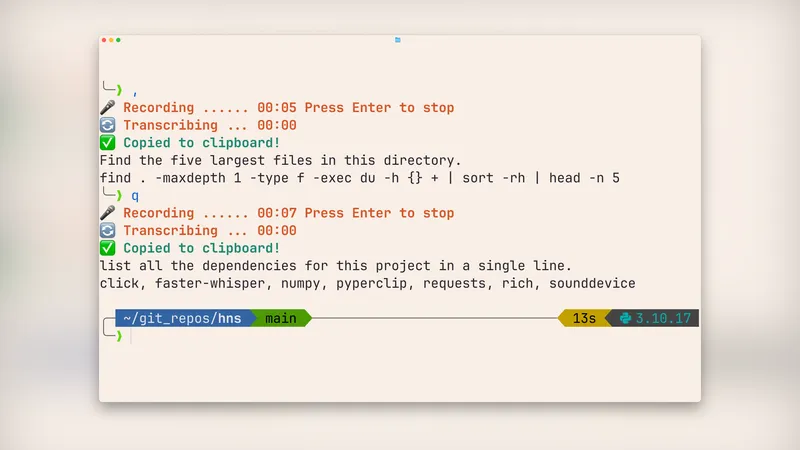
ผู้เขียนตั้งค่าคำสั่งสองคำในเทอร์มินัลที่สามารถพูดคุยได้ ได้แก่ คำสั่ง ที่แปลงคำพูดเป็นคำสั่งเชิงบรรทัดคำสั่ง และคำสั่ง q ที่ใช้โมเดล LLM ตอบคำถาม ผู้เขียนใช้เครื่องมือ hns แปลงเสียงเป็นข้อความที่ทำงานในเครื่องของผู้ใช้โดยตรง พร้อมกับตั้งค่าระบบสำหรับ macOS และพิมพ์คำสั่งสำหรับการใช้งานในเทอร์มินัล
Show original excerpt (English · first 3 paragraphs)
I set up two terminal commands I can talk to, , and q. I enter , in terminal, hit Enter, say what I want, it gives me back the shell command. With q command, I ask a question out loud, and an LLM answers it (and can read files on disk to do so).This is what it looks like in practice:I saw this post by Python Monty about wiring up these two terminal commands:, <description> to get a shell command based on your descriptionq <question> to have an LLM answer your questionThis setup uses the Pi coding agent under the hood. After configuring these commands, we can do things like the following:, find the 5 largest files in the current directory
q read run-qwen36-q8.sh and summarize what it does in 3 bullet points
I immediately found this useful for quick shell commands and questions cause I didn't have to launch a full coding-agent session in Pi or Claude or open a web UI.Now, I'm a big fan of speech-to-text and I use voice typing for all my interactions with LLMs and coding agents. I have built this hns CLI tool for speech-to-text in the terminal. hns writes the transcription to stdout so it integrates well with other CLI tools.So, of course, I wanted to adapt the workflow suggested by Python Monty so that I don't have to type anything after entering , or q. Instead, I can just speak out loud my request or question.The transcription part of this setup runs locally on your machine. You can use local LLMs with Pi to keep the end-to-end setup on-device, or you can use remote LLMs.Setting It Up on macOS1. Install hnsInstall hns by running uv tool install hns. By default, hns uses the base whisper model, about 145 MB in size, which is good enough for this kind of use case. So you don't need to do any other setup for hns. During the first transcription, hns automatically downloads the base model from Hugging Face. After that, transcription happens locally on your machine.2. Install and Configure PiInstall Pi coding agent by following the quickstart guide, then configure a provider and model. You can use a local LLM with Pi to keep your entire setup on-device. Or you can set up cloud LLM through a ChatGPT or GitHub Copilot subscription, or an API key.3. Configure Comma CommandThe , command helps you get a shell command for your use case. After setting this up, you just need to type , in the terminal, hit Enter, and start saying what you want the command to do in plain English.Hit Enter again after you're done speaking and you'll soon see your request and then the shell command in your terminal. The shell command is also copied to the clipboard automatically, so you just need to press Cmd+V and hit Enter to execute the command.If you're using bash or zsh, add this to your ~/.bashrc or ~/.zshrc file:,() {
* For copyright reasons we quote only the first 3 paragraphs. Read the full article at the source.